






CCTV Camera Has Power but No Video? Troubleshooting Guide Malaysia

CCTV Camera Has Power but No Video? Troubleshooting Guide Malaysia
Your CCTV camera has power, but there is no video on the monitor or NVR. Does this mean the camera is faulty?
Not necessarily.
If an IP camera is powered but no video appears, the problem may be related to the camera, Ethernet cable, IP address, subnet, network switch, video stream, login credentials or NVR configuration.
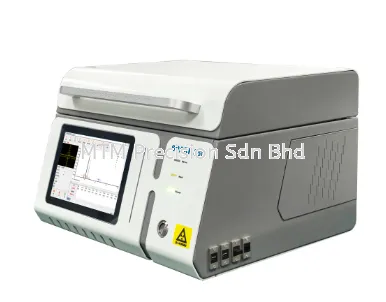
The Noyafa NF-IPC728HSO combines IP camera testing, ONVIF discovery, PoE-related diagnostics, TDR cable testing and Gigabit network functions to help CCTV technicians isolate the problem systematically.
Quick Answer: Why Does My CCTV Camera Have Power but No Video?
Common causes include:
Incorrect IP address
Wrong subnet
Duplicate IP address
Ethernet cable problem
RJ45 termination problem
Network switch issue
Incorrect camera username or password
Unsupported or incorrect video stream settings
NVR configuration problem
Camera fault
Power only confirms one part of the system.
It does not prove that video can travel successfully from the camera to the recorder.
Power Is Not the Same as Communication
For a PoE IP camera, one Ethernet cable may carry both power and network data.
This can create a misleading situation.
The camera appears powered, so the technician assumes the cable is good.
But the complete CCTV path is:
PoE → Camera → Ethernet Data → Switch → Network → NVR
The power side may work while another part of the communication path has a problem.
Step 1: Test the Camera Directly
Before changing the NVR, determine whether the camera itself can produce video.
A professional CCTV tester can connect directly to compatible IP cameras in the field.
The NF-IPC728HSO supports IP camera testing up to 8K / 32MP and major video formats including:
H.265+
H.265
H.264
MPEG4
If the camera displays normally on the tester, this provides an important clue.
The fault may be further along the system.
Step 2: Find the Camera IP Address
A powered camera may be operating normally but configured with an unexpected IP address.
The NF-IPC728HSO provides IP and ONVIF discovery for compatible cameras.
Use discovery to identify the camera and inspect its network configuration.
Check:
IP address
Subnet mask
Gateway
Network range
Do not assume that a powered camera is automatically on the correct network.
Step 3: Check the Subnet
A common CCTV networking problem occurs when the camera and NVR are on different network ranges.
For example:
NVR Network: 192.168.1.xxx
Camera: 192.168.0.xxx
Depending on the network design, communication may fail.
The camera can be fully functional while remaining inaccessible from the NVR.
Check the intended network configuration before changing hardware.
Step 4: Check for Duplicate IP Addresses
Two devices using the same IP address can create unstable or failed communication.
For example:
Camera 1 → 192.168.1.60
Camera 2 → 192.168.1.60
Possible symptoms include:
No video
Camera intermittently offline
One camera replacing another in the network
Unstable NVR connection
Check for IP conflicts when troubleshooting unexplained CCTV communication problems.
Step 5: Check Login Credentials
The NVR may be able to reach the camera but fail to authenticate.
Check the:
Camera username
Camera password
NVR camera credentials
Relevant protocol settings
This is particularly important after:
Camera replacement
Password changes
Factory reset
NVR replacement
System takeover from another contractor
A network connection alone does not guarantee successful camera login.
Step 6: Check the Video Stream
A camera may be online but still fail to display video correctly because of stream configuration.
Check:
Video codec
Resolution
Main / sub-stream settings
NVR compatibility
Camera configuration
The NF-IPC728HSO supports major formats such as H.265+, H.265 and H.264, making it useful for direct camera testing.
If video works on the tester but not the NVR, investigate NVR and stream configuration more closely.
Step 7: Test the Ethernet Cable
A camera receiving power does not automatically prove that the installed cable is fault-free.
Inspect:
RJ45 connectors
Cable termination
Physical cable condition
Wiring
Network communication
The NF-IPC728HSO provides TDR cable testing over approximately 2–195 metres.
This can help technicians evaluate cable length and identify abnormal cable conditions.
Can a PoE Camera Have Power with a Cable Problem?
It is possible for a cabling or termination issue to create unusual situations where some functionality appears present while reliable network communication is not.
Therefore, technicians should test the physical cable rather than concluding:
“Camera has power, therefore cable is definitely good.”
Power and data should be considered separately during troubleshooting.
Step 8: Check the Network Switch
If the camera and cable appear normal, investigate the switch.
Check:
Correct port
Network link
Switch operation
PoE conditions
Uplink connection
Network configuration
Where appropriate, comparison with a known-good port can help isolate a suspected switch-port problem.
Step 9: Check Network Communication
The NF-IPC728HSO provides dual 10/100/1000 Mbps Gigabit Ethernet ports and network diagnostic capabilities.
This allows technicians to continue troubleshooting beyond the camera and physical cable.
A logical path is:
Camera → Cable → Switch → Network → NVR
Test each stage instead of changing several things at once.
Step 10: Check the NVR
If the camera:
Has Power → Is Discovered → Produces Video → Communicates on Network
but still does not display correctly through the recorder, investigate the NVR.
Check:
Camera channel configuration
IP address
Username and password
Protocol settings
Video stream settings
NVR network configuration
Recorder compatibility
At this point, replacing the camera is unlikely to be the best first action.
Camera Shows on Tester but Not on NVR
This is one of the most useful diagnostic results.
It indicates that the camera can at least produce a viewable stream under the test conditions.
Focus next on:
Installed Cable → Network → Configuration → NVR
This helps narrow the problem substantially.
What If an Analog CCTV Camera Has Power but No Video?
The troubleshooting process is different for analog CCTV.
Check areas such as:
Camera power
Video cable
Connectors
Camera output format
DVR input
Camera condition
The NF-IPC728HSO supports major analog CCTV formats including:
TVI up to 8MP
CVI up to 8MP
AHD up to 8MP
CVBS PAL / NTSC
This allows technicians to work across both IP and many existing analog CCTV systems.
Do Not Replace the Camera Too Early
A common troubleshooting mistake is:
No Video = Bad Camera
But consider the full system:
Camera → PoE → Cable → Switch → IP Network → NVR
Replacing the camera only solves the problem when the camera is actually the failed component.
Test first.
Replace second.
Fast Troubleshooting Sequence
When an IP CCTV camera has power but no video, follow this order:
1. Test camera directly
2. Discover camera IP
3. Check subnet
4. Check duplicate IP
5. Check credentials
6. Check video stream
7. Test Ethernet cable
8. Check switch
9. Check network
10. Check NVR
A structured process reduces random troubleshooting.
Why Use the Noyafa NF-IPC728HSO?
The NF-IPC728HSO combines:
8K / 32MP IP Camera Testing
8-inch 1920 × 1200 IPS Display
ONVIF / IP Camera Discovery
PoE-Related Testing
Dual Gigabit Ethernet
Network Diagnostics
TDR Cable Testing
Cable Tracing
Wi-Fi Analysis
Analog CCTV Testing
OPM / VFL Capabilities Depending on Configuration
This allows technicians to investigate several possible causes of a no-video problem using one field platform.
CCTV Camera Has Power but No Video Malaysia
If a CCTV camera has power but no video, do not assume immediately that the camera is defective.
Work through the system:
Camera → IP → Cable → Switch → Network → NVR
For CCTV installers, ELV contractors and maintenance technicians in Malaysia, the Noyafa NF-IPC728HSO provides a broad range of camera, cable and network diagnostic functions for professional field troubleshooting.
Contact MTM Precision
Having a CCTV Camera With Power but No Video, or looking for a professional IP Camera Tester in Malaysia?
Contact MTM Precision for Noyafa NF-IPC728HSO price, configuration, availability and technical information.
MTM Precision Sdn Bhd
No. 29-1 & 29-2, Jalan Bandar 18,
Pusat Bandar Puchong,
47160 Puchong, Selangor, Malaysia.
Website: www.mtmpre.com.my
WhatsApp: +6016-660 7346
Email: mtmpre@yahoo.com
Meta Description: CCTV camera has power but no video? Troubleshoot IP address, subnet, RJ45 cable, switch, network and NVR problems with the Noyafa NF-IPC728HSO CCTV Tester Malaysia.
29 Aug 2026


