







Network Rack Hotspot Detection Using a Thermal Camera Malaysia

Network racks contain servers, switches, power supplies, patch panels and power distribution equipment operating continuously within a limited space.
Restricted airflow, overloaded power connections and failing components can create localised heat that may not be detected by the server room’s wall-mounted temperature sensor.
Using a thermal camera for network rack inspection helps Malaysian data-centre teams identify unusual temperature patterns before they cause equipment shutdown or service interruption.
Why Do Network Racks Develop Hotspots?
Common causes include:
Restricted airflow
Blocked equipment ventilation
Missing rack blanking panels
Hot-air recirculation
High equipment load
Overloaded power distribution units
Loose plugs or electrical connections
Failing power supplies
Damaged cooling fans
Poor cable management
Dust accumulation
Uneven cooling between rack levels
Equipment installed too close together
Some equipment naturally operates warmer than others. The concern is a significant change or difference compared with similar equipment.
Why Is Room Temperature Alone Not Enough?
A room sensor normally measures conditions at only one location.
It may not detect:
High temperature at the top of a rack
Hot air trapped behind equipment
A failing server fan
An overheated power adapter
A loose PDU connection
Restricted airflow inside the rack
One unusually warm network switch
Heat recirculating between aisles
A complete inspection should combine room monitoring, rack-level measurements and thermal imaging.
Where Should Network Racks Be Inspected?
Front of the Rack
The front of the rack normally receives cooling air.
Check:
Air-intake temperature
Blocked ventilation openings
Uneven temperature between rack levels
Empty spaces without blanking panels
Equipment drawing in unusually warm air
A temperature and humidity meter can support spot checks at the bottom, middle and top of the rack.
Rear of the Rack
The rear normally releases warmer exhaust air.
Inspect:
Server exhaust patterns
Switch power supplies
Cooling fans
Power cables
PDU connections
Cable congestion
Abnormally hot equipment
The rear will usually be warmer than the front, but one concentrated hotspot may require investigation.
Top of the Rack
Warm air rises, so the upper section may experience higher temperatures.
Check whether:
Top-mounted equipment receives sufficient cooling
Hot air is trapped above the rack
Cable bundles restrict airflow
Temperature differs significantly from the lower section
Rack Power Distribution Unit
Inspect:
Plugs and sockets
Cable connections
Input connection
High-load outlets
Circuit-protection areas
Damaged or discoloured components
A loose or overloaded connection may create a localised thermal hotspot.
Server and Network Equipment
Scan:
Power-supply modules
Cooling-fan outlets
Network switches
Servers
Storage equipment
Routers
Power adapters
Other active devices
Compare similar devices operating under comparable loads.
Tools for Network Rack Hotspot Detection
Thermal Imaging Camera
A thermal camera displays temperature patterns across the rack and equipment.
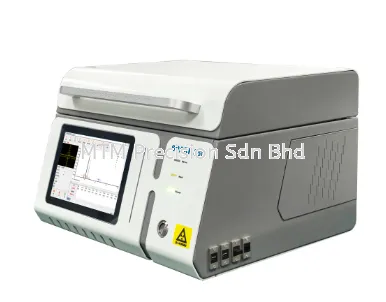
The Noyafa NF-522 Thermal Camera can support:
Network-rack hotspot detection
Server thermal inspection
PDU connection checking
Power-supply inspection
Switch temperature comparison
Cooling-airflow troubleshooting
Data-centre preventive maintenance
It helps technicians locate an unknown hotspot more efficiently than checking every component individually with an infrared thermometer.
Temperature and Humidity Meter
Use a portable temperature and humidity meter to compare conditions at:
Rack front
Rack rear
Top of rack
Middle of rack
Bottom of rack
Cold aisle
Hot aisle
Cooling outlet
This provides environmental context for thermal images.
Temperature Data Logger
A data logger helps identify temperature changes that occur:
Overnight
During peak server loading
When cooling equipment cycles
During weekends
After rack configuration changes
Following HVAC maintenance
A logger placed near a problem rack may reveal short-duration temperature rises that are missed during a routine visit.
Airflow Meter
An airflow meter can help verify whether sufficient air reaches the rack.
Measure airflow around:
Cooling outlets
Perforated floor tiles
Rack air intake
Rack exhaust
Areas suspected of poor circulation
Clamp Meter
Qualified electrical technicians may use a suitable clamp meter to assess the current carried by rack power circuits.
This can help determine whether high temperature is associated with high electrical load.
Network Cable Tester
Thermal inspection does not test the performance or wiring of a network cable.
A network cable tester, such as the Noyafa NF-8209 Pro or Noyafa NF-8506, should be used to investigate:
Open circuits
Short circuits
Incorrect wire mapping
Suspected damaged cables
Unidentified cables
Network connection problems
How to Perform a Network Rack Thermal Inspection
Step 1: Identify the Rack
Record:
Rack number
Room location
Equipment installed
Current alarms
Recent equipment changes
Normal operating load
Previous temperature concerns
Step 2: Check Room Conditions
Measure and record:
Server-room temperature
Relative humidity
Cooling-system status
Cold-aisle temperature
Hot-aisle temperature
A rack should not be assessed without considering the surrounding environment.
Step 3: Measure at Different Heights
Take temperature readings at the:
Bottom
Middle
Top
Repeat the measurements at both the front and rear where practical.
A large vertical temperature difference may indicate poor airflow or heat accumulation.
Step 4: Scan the Entire Rack
Begin with a wide thermal view.
Then inspect:
Individual servers
Network switches
Power supplies
Fan outlets
PDU connections
Plugs and sockets
Cable bundles
Rack ventilation openings
Step 5: Compare Similar Equipment
Compare:
Identical servers
Similar switches
Redundant power supplies
Adjacent PDU outlets
Corresponding rack levels
Current images with previous inspection images
A single device that is hotter than comparable equipment may require further assessment.
Step 6: Check Airflow Obstructions
Look for:
Excessive cabling
Blocked fan outlets
Missing blanking panels
Equipment installed incorrectly
Objects stored inside the rack
Open cable-entry spaces
Damaged containment panels
Correcting airflow problems may reduce temperature without replacing equipment.
Step 7: Document Hotspots
Record:
Thermal image
Visual image
Rack identification
Equipment identification
Hotspot location
Maximum observed temperature
Comparison temperature
Room temperature
Equipment load or status
Recommended action
Step 8: Reinspect After Correction
After changing cable management, replacing a fan or repairing an electrical connection, repeat the thermal inspection under similar operating conditions.
This confirms whether the abnormal pattern has been corrected.
Thermal Camera Versus Temperature Data Logger
These tools serve different purposes.
RequirementThermal cameraData loggerLocate the exact hotspotYesNoView equipment temperature patternYesNoRecord temperature over several daysNoYesDetect overnight temperature riseLimitedYesCompare rack componentsYesNoCreate historical room-temperature dataLimitedYes
For effective network-rack maintenance, the two tools should complement each other.
A thermal camera locates the hotspot, while a data logger records when environmental temperature changes occur.
Common Network Rack Inspection Mistakes
Avoid:
Checking only the room temperature
Measuring only the centre of the rack
Ignoring the rear exhaust area
Failing to inspect PDU connections
Assuming every warm device is faulty
Ignoring equipment load
Blocking ventilation with cable bundles
Removing blanking panels without considering airflow
Failing to save inspection records
Not reinspecting after corrective work
What Should Be Included in the Inspection Report?
A practical rack inspection report may include:
Data-centre and room location
Rack identification
Inspection date and time
Ambient temperature and humidity
Front and rear rack temperatures
Top, middle and bottom readings
Thermal images
Visual images
Hotspot location
Equipment status
Airflow observations
Corrective action required
Follow-up inspection date
Recommended Network Rack Inspection Kit
A useful toolkit may include:
Thermal imaging camera
Temperature and humidity meter
Temperature data logger
Airflow meter
Network cable tester
Clamp meter
Digital multimeter
Sound level meter
The appropriate tools depend on whether the technician is responsible for IT equipment, electrical power, cooling or the complete facility.
Find Rack-Level Problems Before They Affect the Server Room
A server room may remain within its normal average temperature while individual network racks develop serious localised heat.
Combining thermal imaging with rack-level temperature measurement, continuous logging and airflow checking helps maintenance teams locate these hidden conditions earlier.
The result is a more complete data centre preventive maintenance programme covering both the room environment and the equipment inside each network rack.
Contact MTM Precision
MTM Precision Sdn. Bhd.
Showroom & Service Centre
No. 29-1 & 29-2, Jalan Bandar 18,
Pusat Bandar Puchong,
47160 Puchong, Selangor, Malaysia
🌐 Website: www.mtmpre.com.my
📧 Email: mtmpre@yahoo.com
📱 WhatsApp: +6016-660 7346
02 Sep 2026


