






How to Test PoE Network Cables and Switch Ports in a Data Centre Malaysia

Power over Ethernet, commonly known as PoE, supplies network communication and electrical power through the same Ethernet cable.
Data centres and server rooms may use PoE for IP cameras, wireless access points, access-control devices, VoIP phones and other network equipment.
When a PoE device stops working, the fault may be caused by the network cable, switch port, power source, connector, device configuration or connected equipment.
Using a suitable PoE network cable tester in Malaysia helps technicians determine whether power and network connectivity are available before replacing equipment unnecessarily.
What Is PoE?
PoE allows compatible network equipment to receive power through an Ethernet connection.
A typical PoE system includes:
-
Power Sourcing Equipment (PSE), such as a PoE network switch or injector
-
Powered Device (PD), such as an IP camera or wireless access point
-
Ethernet cable
-
RJ45 connectors
-
Patch panels and patch cords
All parts of the connection must operate correctly for the device to receive reliable power and data.
Where Is PoE Used in a Data Centre?
Common applications include:
-
IP CCTV cameras
-
Wireless access points
-
Access-control readers
-
VoIP phones
-
Network sensors
-
Environmental-monitoring devices
-
Building-management devices
-
Intercom systems
-
Remote network equipment
Some devices are installed far from the main network rack, making on-site testing valuable.
Common PoE Problems
No Power at the Device
Possible causes include:
-
PoE disabled on the switch port
-
Incorrect network port
-
Damaged cable
-
Poor termination
-
Faulty patch cord
-
Insufficient switch power capacity
-
Incompatible PoE requirement
-
Defective injector
-
Faulty powered device
Intermittent Device Operation
A device may restart or disconnect repeatedly because of:
-
Unstable power
-
High cable resistance
-
Loose connector
-
Damaged conductors
-
Excessive cable length
-
Insufficient available power
-
Switch-port problem
-
Device fault
-
Temperature-related problems
Network Connection Without PoE
The cable may provide data while the device does not receive the required power.
Check the switch configuration, PoE status and device compatibility.
PoE Available but No Network Link
The device may receive power while network communication remains unavailable because of:
-
Incorrect wiring
-
Damaged data pair
-
Network configuration
-
Faulty switch port
-
Defective device network interface
-
Incorrect VLAN or security setting
PoE Device Works on One Port but Not Another
This may indicate:
-
Port configuration difference
-
Faulty switch port
-
PoE disabled
-
Insufficient power budget
-
Port limitation
-
Network-policy issue
Tools for PoE Troubleshooting
A practical toolkit may include:
-
PoE network cable tester
-
Multifunction cable tracer
-
Wire-map tester
-
Known-good patch cord
-
Known-good PoE port or injector
-
CCTV tester for IP camera work
-
Laptop or network diagnostic device
-
Replacement RJ45 connectors
-
Crimping tool
-
Cable labels
The Noyafa NF-8209 Pro and relevant versions of the Noyafa NF-8506 can be considered for network and PoE-related troubleshooting, subject to their current specifications.
Step 1: Identify the PoE Device
Record:
-
Device type
-
Device model
-
Physical location
-
Network-rack location
-
Switch and port number
-
Required PoE type
-
Reported problem
-
Previous operating condition
Do not assume that every network-powered device uses the same PoE requirement.
Step 2: Check the Device Indicators
Observe:
-
Power light
-
Network-link light
-
Activity light
-
Warning indicator
-
Restart behaviour
-
Camera image
-
Access-point status
-
System alarm
These signs help determine whether the problem involves power, network communication or both.
Step 3: Check the Switch Port
At the network switch, inspect:
-
Link indicator
-
Activity indicator
-
PoE status
-
Error status
-
Port configuration
-
Power allocation
-
Switch alarm
Where authorised, review the switch-management interface for additional information.
Step 4: Confirm the Correct Cable
Use rack documentation and cable labels to confirm:
-
Patch-panel port
-
Switch port
-
Device destination
-
Cable number
-
Rack number
If records are uncertain, use a cable tracer or port-identification function.
Do not disconnect a suspected cable until the connection is confirmed.
Step 5: Test with a Known-Good Patch Cord
Replace the short patch cord temporarily where permitted.
If the device begins operating normally, inspect or replace the original patch cord.
Patch cords are easy to overlook because technicians often focus immediately on the permanent cable route.
Step 6: Check the Wire Map
Disconnect the cable according to the approved procedure and run a wire-map test.
Look for:
-
Open conductors
-
Short circuits
-
Reversed pairs
-
Crossed pairs
-
Incorrect termination
-
Other wiring indications
A cable that cannot maintain correct conductor connections may not deliver reliable PoE power or network data.
Step 7: Test for PoE Presence
Connect the tester correctly and check whether PoE is detected.
Depending on the tester, available information may include:
-
PoE presence
-
Power-sourcing type
-
Powered pairs
-
Voltage-related information
-
Port status
Readings and terminology depend on the tester model.
Step 8: Check Cable Length
Long cable routes increase voltage drop and may affect PoE performance, particularly when the connected device requires more power.
Where supported, measure the cable length and compare it with:
-
Installation records
-
Expected route
-
Applicable cabling limits
-
Similar connections
Remember that patch cords contribute to the complete channel length.
Step 9: Inspect the Connectors
Check both ends for:
-
Loose contacts
-
Poor crimping
-
Bent pins
-
Damaged locking tabs
-
Corrosion
-
Contamination
-
Incorrect conductor order
-
Cable movement inside the connector
A poor connector may pass power or data intermittently.
Step 10: Check the PoE Power Budget
A PoE switch has a limited total amount of power available for connected devices.
A newly installed camera or access point may cause problems if the available power budget is insufficient.
Review:
-
Number of connected PoE devices
-
Power required by each device
-
Switch power capacity
-
Per-port limits
-
Current switch allocation
-
High-power devices
-
Redundant-power condition
Step 11: Test the Device on a Known-Good Port
Where authorised, connect the device using:
-
A known-good patch cord
-
A confirmed working PoE port
-
A suitable injector, when appropriate
If the device still does not operate, investigate the device itself.
Document all port and configuration changes.
Step 12: Test the Original Port with a Known-Good Device
Connect a compatible known-good device where permitted.
This helps determine whether the original switch port provides correct PoE and network communication.
Step 13: Use a CCTV Tester for IP Cameras
For an IP camera, a dedicated CCTV tester such as the Noyafa NF-IPC728HSO can support:
-
On-site camera-image checking
-
IP camera diagnosis
-
Network testing
-
Installation adjustment
-
Cable-related troubleshooting
-
Camera configuration work
This helps distinguish camera problems from cable and network-port problems.
Step 14: Repair and Retest
Corrective work may include:
-
Replacing a patch cord
-
Reterminating an RJ45 connector
-
Repairing a patch-panel connection
-
Replacing the permanent cable
-
Enabling PoE on the port
-
Correcting switch configuration
-
Moving the device to an approved port
-
Replacing a faulty injector
-
Replacing the powered device
After repair, confirm:
-
PoE is present
-
Device powers on
-
Network link is established
-
Device remains stable
-
No repeated restart occurs
-
Final cable test passes
Using the Noyafa NF-8209 Pro for PoE Work
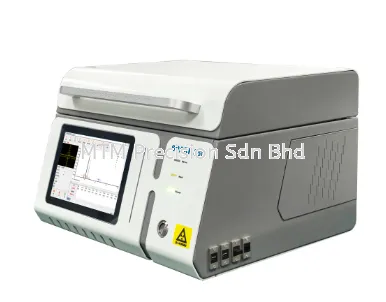
The Noyafa NF-8209 Pro Network Cable Tester can be positioned for tasks such as:
-
PoE presence checking
-
Network cable testing
-
Wire-map inspection
-
Cable tracing
-
Switch-port identification
-
Cable-length or fault investigation
-
Server-room preventive maintenance
Confirm the exact functions of the current product version before purchase.
Using the Noyafa NF-8506
The Noyafa NF-8506 can support network installation and troubleshooting work involving:
-
Cable tracing
-
Cable identification
-
Network-line checking
-
Rack maintenance
-
PoE-related work, depending on the version
-
General server-room diagnostics
Choose between models according to the exact PoE information and cable-testing functions required.
PoE Tester Versus Basic Cable Tester
| Requirement | Basic cable tester | PoE-capable network tester |
|---|---|---|
| Check conductor continuity | Yes | Yes |
| Check wire map | Usually | Usually |
| Detect PoE presence | Usually no | Yes |
| Identify power information | No | Model dependent |
| Trace cables | Not always | Often |
| Identify switch port | Limited | Model dependent |
| Suitable for PoE troubleshooting | Limited | Better option |
A basic tester may confirm wiring but cannot necessarily explain why a PoE device is not receiving power.
PoE Tester Versus CCTV Tester
| Requirement | PoE network tester | CCTV tester |
|---|---|---|
| Check cable wiring | Yes | Model dependent |
| Detect PoE | Yes | Often, model dependent |
| Trace network cable | Often | Model dependent |
| Display camera image | No | Yes |
| Configure IP camera | No | Yes |
| Test patch-panel cabling | Strong application | Supporting application |
| Perform camera installation | Supporting tool | Primary tool |
For IP-camera maintenance, both instruments may form part of the technician’s toolkit.
Common PoE Troubleshooting Mistakes
Avoid:
-
Assuming that PoE presence means sufficient power
-
Ignoring the switch’s total power budget
-
Replacing the camera before testing the cable
-
Checking only the permanent cable and ignoring patch cords
-
Disconnecting a critical port without authorisation
-
Assuming all PoE devices have the same power requirement
-
Ignoring damaged connectors
-
Changing port configuration without documentation
-
Using an incompatible passive power source
-
Failing to retest the device under normal operation
-
Treating every network problem as a PoE fault
Quick PoE Troubleshooting Checklist
-
Confirm the device and reported symptom.
-
Check device indicators.
-
Check switch-port status.
-
Verify the correct cable and port.
-
Test with a known-good patch cord.
-
Run the wire-map test.
-
Check for PoE presence.
-
Confirm cable length.
-
Inspect both connectors.
-
Review switch power budget.
-
Test the device on a known-good port.
-
Test the original port with a known-good device.
-
Repair the confirmed fault.
-
Retest power, network link and device stability.
-
Update the maintenance record.
Identify the PoE Fault Before Replacing Equipment
A PoE device can stop operating even when the camera, access point or sensor itself remains in good condition.
By checking the cable wiring, PoE source, power budget, switch port and device separately, technicians can identify the actual problem and avoid unnecessary replacement.
A multifunction network tester provides practical support for maintaining PoE systems across data centres, server rooms, network racks and CCTV installations.
Contact MTM Precision
MTM Precision Sdn. Bhd.
Showroom & Service Centre
No. 29-1 & 29-2, Jalan Bandar 18,
Pusat Bandar Puchong,
47160 Puchong, Selangor, Malaysia
🌐 Website: www.mtmpre.com.my
📧 Email: mtmpre@yahoo.com
📱 WhatsApp: +6016-660 7346
02 Sep 2026


