







CCTV Tester for Data Centre Security Camera Maintenance Malaysia

Data centres use CCTV systems to monitor entrances, server rooms, network racks, electrical rooms, loading areas and other restricted locations.
When a camera goes offline or produces a poor image, the fault may involve the camera, network cable, PoE supply, switch port, connector or system configuration.
Using a professional CCTV tester for data centre maintenance in Malaysia allows technicians to diagnose the system directly at the camera location instead of repeatedly returning to the control room.
Why Is CCTV Important in a Data Centre?
CCTV supports:
-
Entrance and exit monitoring
-
Server-room security
-
Network-rack monitoring
-
Electrical-room surveillance
-
UPS and battery-room monitoring
-
Loading-area security
-
Contractor supervision
-
Incident investigation
-
Restricted-area access control
-
Safety and operational review
A failed camera may create a blind spot in a critical location.
Common Data Centre CCTV Problems
Camera Has No Power
Possible causes include:
-
No PoE from the network switch
-
Faulty power adapter
-
Damaged power cable
-
Poor connector
-
Incorrect wiring
-
Insufficient PoE power budget
-
Defective camera
Camera Is Offline
Possible causes include:
-
Damaged network cable
-
Incorrect IP address
-
Network-port problem
-
Switch configuration
-
Connector fault
-
Camera software issue
-
Recorder communication problem
-
Duplicate IP address
No Image
The camera may receive power but fail to display an image because of:
-
Incorrect camera configuration
-
Video-format mismatch
-
Network communication failure
-
Damaged camera sensor
-
Recorder settings
-
Authentication issue
Unstable or Intermittent Image
Possible causes include:
-
Loose connector
-
Unstable PoE
-
Poor cable termination
-
Damaged network cable
-
Excessive cable length
-
Network congestion
-
Camera overheating
-
Moisture or environmental damage
Poor Image Quality
Check for:
-
Dirty lens
-
Incorrect focus
-
Poor lighting
-
Reflection
-
Wrong camera angle
-
Condensation
-
Damaged sensor
-
Incorrect image settings
Camera Works at the Rack but Not at the Installation Point
This usually suggests a problem involving:
-
Permanent cable
-
Patch panel
-
Remote connector
-
PoE voltage drop
-
Cable route
-
Installation environment
What Is a CCTV Tester?
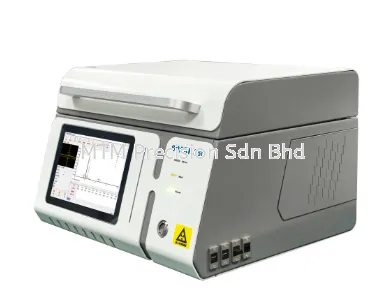
A CCTV tester is a portable instrument designed to help technicians install, inspect and troubleshoot surveillance cameras.
Depending on the model, it may support:
-
IP camera testing
-
Camera-image display
-
Network testing
-
Cable testing
-
PoE-related checking
-
Camera configuration
-
Video-format testing
-
PTZ control
-
On-site installation adjustment
-
Network tools
The exact functions depend on the tester and product version.
Noyafa NF-IPC728HSO for Data Centre CCTV Maintenance
The Noyafa NF-IPC728HSO CCTV Tester can be positioned for:
-
Data-centre CCTV installation
-
IP camera troubleshooting
-
Camera-image checking
-
PoE-related inspection
-
Network connection testing
-
Cable tracing and checking
-
Camera-angle adjustment
-
Server-room security maintenance
-
Building and facility CCTV servicing
It allows technicians to perform multiple checks at the camera location using one portable instrument.
Before purchasing, verify that the current version supports the camera types, video formats and network functions required for the project.
Where Can the NF-IPC728HSO Be Used?
Server Rooms
Test cameras monitoring:
-
Server racks
-
Entry doors
-
Maintenance aisles
-
Emergency exits
-
Restricted equipment
Network Rooms
Check cameras installed around:
-
Network cabinets
-
Patch panels
-
Communication equipment
-
Access points
-
Entry areas
UPS and Battery Rooms
Inspect surveillance covering:
-
UPS equipment
-
Battery cabinets
-
Electrical access
-
Maintenance activity
-
Safety zones
Switchgear and Transformer Rooms
Support CCTV systems monitoring:
-
Electrical equipment
-
Restricted doors
-
Contractor activity
-
Warning areas
-
Operational incidents
External Data Centre Areas
Test cameras around:
-
Perimeter fencing
-
Gates
-
Loading bays
-
Car parks
-
Generator areas
-
Cooling equipment
-
Utility entrances
CCTV Tester Versus Network Cable Tester
These tools serve related but different purposes.
| Requirement | CCTV tester | Network cable tester |
|---|---|---|
| Display camera image | Yes | No |
| Configure IP camera | Model dependent | No |
| Adjust camera angle | Yes | No |
| Check network cable wiring | Model dependent | Yes |
| Trace an unknown cable | Model dependent | Often |
| Check PoE | Model dependent | Model dependent |
| Test patch-panel cabling | Supporting function | Primary function |
| Diagnose camera on location | Strong advantage | Limited |
For complete CCTV maintenance, technicians may use the NF-IPC728HSO together with the NF-8209 Pro or NF-8506.
CCTV Tester Versus Laptop
A laptop can support network configuration and recorder access, but it may be inconvenient at the camera location.
| Requirement | CCTV tester | Laptop |
|---|---|---|
| Portable at camera location | Yes | Less convenient |
| Direct camera-image checking | Yes | Requires network setup |
| Camera-angle adjustment | Convenient | Difficult in some locations |
| Cable and PoE functions | Model dependent | Additional tools required |
| Full software configuration | Limited by tester | Stronger |
| Rugged field use | Better suited | Less suitable |
A CCTV tester is designed for installation and troubleshooting, while a laptop remains useful for complete system administration.
How to Troubleshoot a Data Centre IP Camera
Step 1: Confirm the Camera
Record:
-
Camera identification
-
Physical location
-
Network-rack location
-
Switch and port number
-
Recorder or management system
-
IP address
-
PoE requirement
-
Reported symptom
Step 2: Perform a Visual Inspection
Check:
-
Camera housing
-
Lens condition
-
Mounting bracket
-
Connector
-
Cable entry
-
Water or condensation
-
Physical damage
-
Indicator lights
Step 3: Check Power
Determine whether the camera uses:
-
PoE
-
Local DC power
-
Another power arrangement
Check power availability using a suitable tester and approved procedure.
Step 4: Connect the CCTV Tester
Connect according to the camera type and tester instructions.
Confirm:
-
Correct test port
-
Correct network connection
-
Compatible video format
-
Camera power condition
-
Tester network settings
Step 5: Check the Camera Image
Look for:
-
No image
-
Blurred image
-
Incorrect angle
-
Poor focus
-
Overexposure
-
Insufficient lighting
-
Colour problem
-
Image interference
-
Condensation
-
Obstruction
Step 6: Verify Network Communication
Check:
-
IP address
-
Network range
-
Link status
-
Device detection
-
Duplicate IP address
-
Gateway settings
-
Authentication
-
Switch-port connection
Step 7: Test the Network Cable
Use the CCTV tester’s supported cable functions or a separate network cable tester.
Check for:
-
Open conductors
-
Short circuits
-
Crossed pairs
-
Poor termination
-
Damaged connectors
-
Cable-length concerns
Step 8: Check PoE
Confirm:
-
PoE is present
-
Correct switch port is used
-
Available switch power
-
Compatible device requirement
-
Stable operation under load
PoE detection does not automatically prove that sufficient power reaches the camera during operation.
Step 9: Test with a Known-Good Cable or Port
Where authorised, use:
-
Known-good patch cord
-
Confirmed working PoE port
-
Suitable power source
-
Known-good camera
Change one component at a time so the actual fault can be identified.
Step 10: Adjust the Camera
Use the tester display to check:
-
Viewing angle
-
Focus
-
Coverage
-
Blind spots
-
Image orientation
-
Lighting
-
Obstructions
This allows adjustment without relying on another person in the control room.
Step 11: Confirm Recorder Connection
After local camera operation is confirmed, check:
-
Camera appears on the recorder
-
Recording is active
-
Date and time are correct
-
Image quality is acceptable
-
Motion or alarm functions operate
-
Camera name and location are correct
Step 12: Document the Result
Record:
-
Camera identification
-
Camera location
-
Tester used
-
Cable-test result
-
PoE result
-
Network information
-
Image condition
-
Fault found
-
Corrective action
-
Final operating status
-
Technician and date
Troubleshooting No-Power Problems
Use this sequence:
-
Check camera indicators.
-
Confirm the correct cable.
-
Check PoE or local power.
-
Inspect connectors.
-
Test the cable wiring.
-
Test with a known-good port.
-
Review the PoE power budget.
-
Test with a known-good camera.
-
Repair the confirmed fault.
-
Retest the complete connection.
Troubleshooting No-Image Problems
-
Confirm camera power.
-
Connect directly with the CCTV tester.
-
Check video format or IP communication.
-
Verify login information.
-
Check network settings.
-
Inspect the lens and sensor condition.
-
Confirm recorder compatibility.
-
Test using a known-good cable.
-
Restore the final connection.
-
Confirm recording.
Troubleshooting Intermittent Camera Problems
Intermittent faults may require:
-
Cable movement check
-
Connector inspection
-
Continuous PoE observation
-
Network-log review
-
Temperature monitoring
-
Switch-port testing
-
Replacement patch cord
-
Longer operating test
-
Camera thermal inspection
-
Data-centre environment review
An intermittent fault should not be considered resolved after only a short successful test.
Common CCTV Maintenance Mistakes
Avoid:
-
Replacing the camera before testing power and cable
-
Checking only the control-room image
-
Ignoring the patch cord inside the rack
-
Assuming PoE presence means adequate power
-
Changing IP settings without recording them
-
Moving switch ports without approval
-
Failing to inspect connectors
-
Adjusting the camera without confirming final coverage
-
Leaving temporary test cables installed
-
Failing to confirm recording after repair
-
Testing only during daylight when night performance is important
Recommended Data Centre CCTV Tool Kit
A practical kit may include:
-
Noyafa NF-IPC728HSO CCTV Tester
-
Noyafa NF-8209 Pro Network Cable Tester
-
Noyafa NF-8506 Network Cable Tester
-
Known-good patch cords
-
PoE injector or suitable test source
-
Replacement RJ45 connectors
-
Crimping tool
-
Cable labels
-
Basic hand tools
-
Portable monitor where required
-
Thermal imaging camera
Maintain the Complete CCTV Connection
A CCTV camera problem does not always mean that the camera has failed.
By checking power, PoE, network cable, switch port, camera image and recorder connection separately, technicians can identify the actual fault and restore surveillance more efficiently.
The Noyafa NF-IPC728HSO CCTV Tester provides a practical portable solution for data-centre CCTV installation, inspection and preventive maintenance.
Contact MTM Precision
MTM Precision Sdn. Bhd.
Showroom & Service Centre
No. 29-1 & 29-2, Jalan Bandar 18,
Pusat Bandar Puchong,
47160 Puchong, Selangor, Malaysia
🌐 Website: www.mtmpre.com.my
📧 Email: mtmpre@yahoo.com
📱 WhatsApp: +6016-660 7346
02 Sep 2026
